

Connect your site
Link the plugin to your ChangeTrace account in one click — no token to copy.
This is the normal way to connect. Your browser makes the introduction, so you never handle a token. If you would rather paste one manually, see Connect with a token.
Connecting
Open the ChangeTrace screen
ChangeTrace in the WordPress admin sidebar.
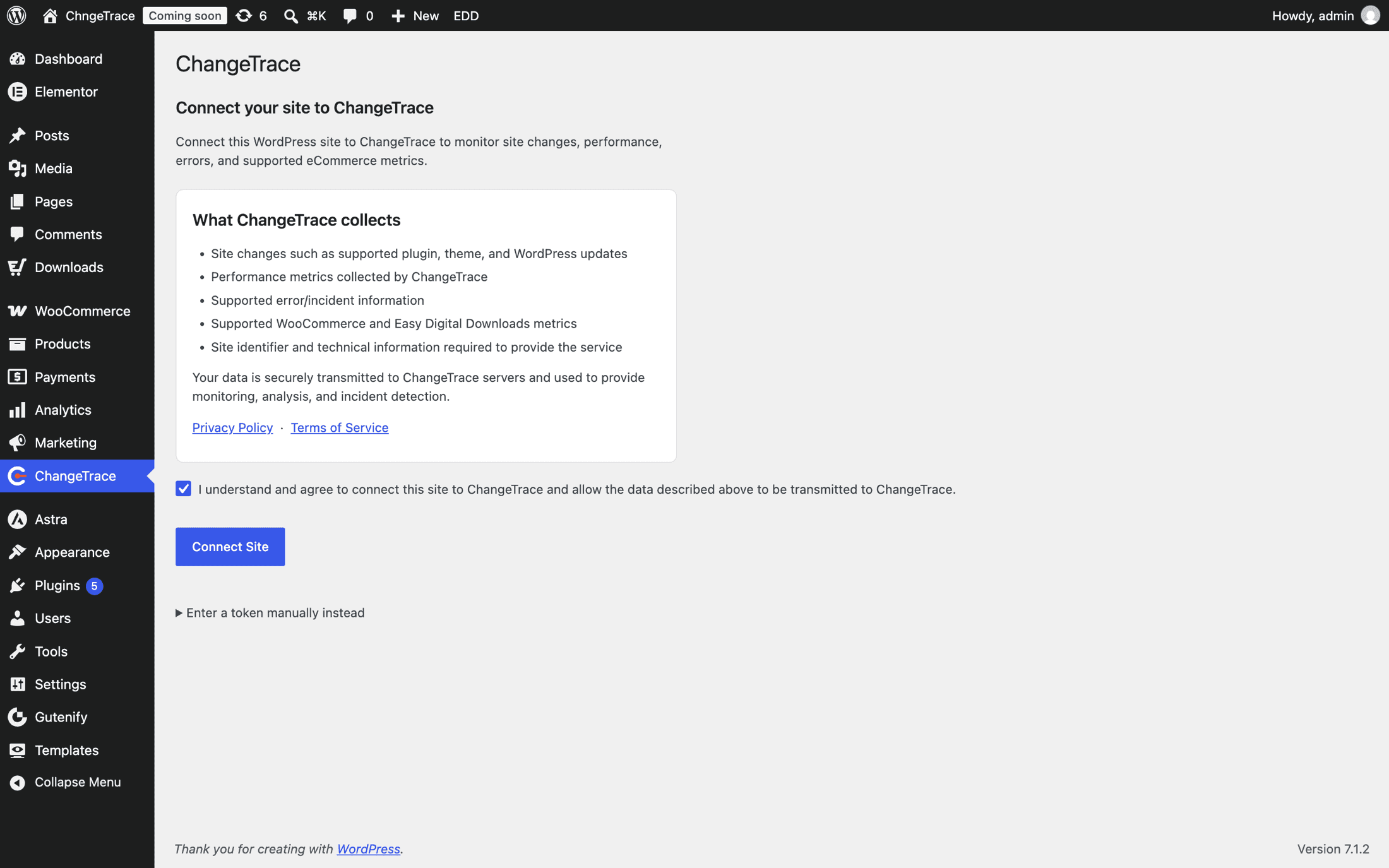
Agree and click Connect Site
Tick the confirmation checkbox — it lists what will be sent — then click Connect Site. The button stays disabled until the box is ticked.
Sign in or create your account
Your browser goes to ChangeTrace. Sign in, or create a free account with an email and password (you will get a 6-digit code by email to confirm it). Some accounts also offer Google sign-in.
First time? You will be asked for an organization name. This is the account that owns your sites and your plan, so use your business name rather than your own.
Approve the connection
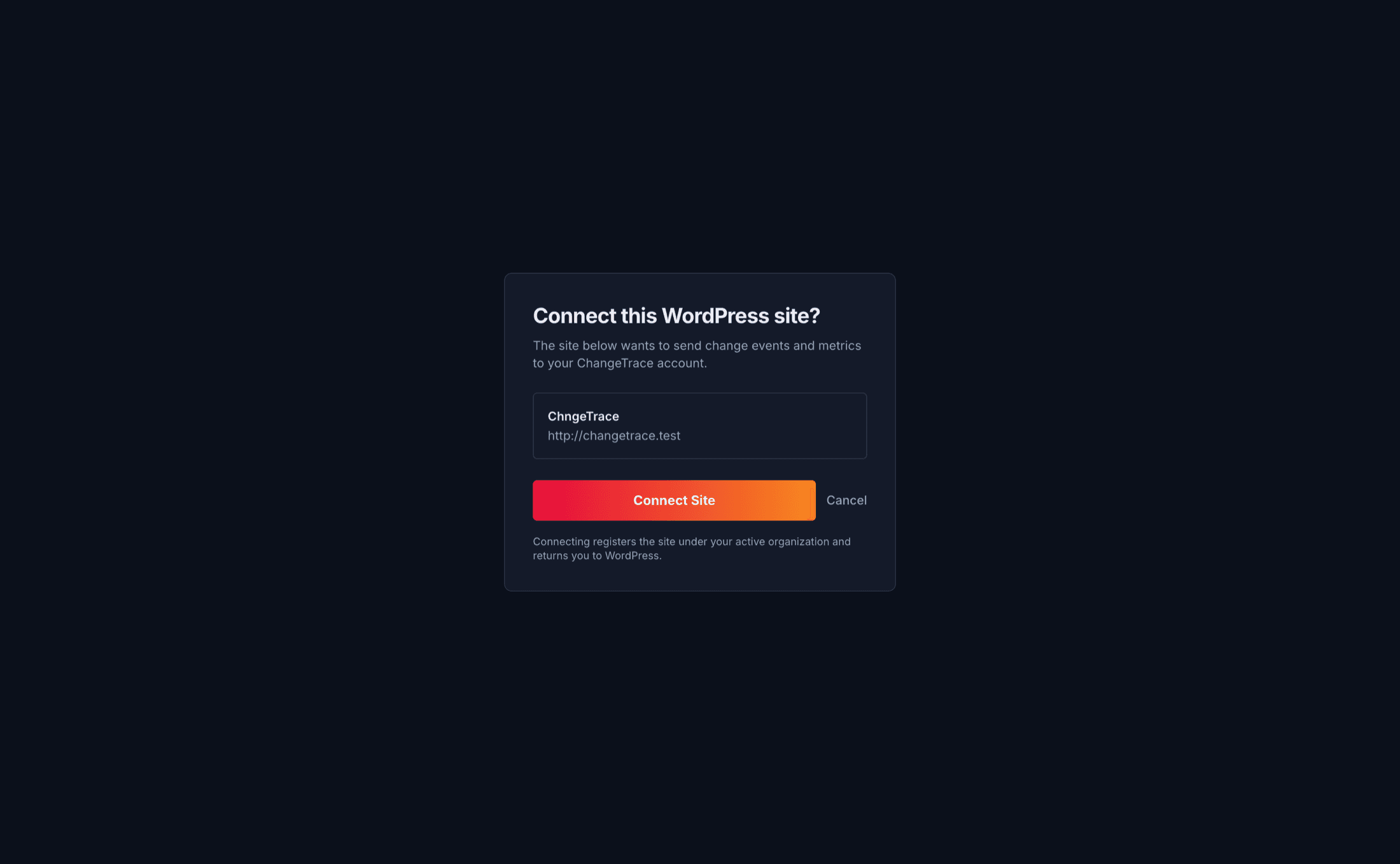
You will see "Connect this WordPress site?" with the site name and URL. Check they are right, then click Connect Site.
Land back in WordPress
You are returned to the ChangeTrace screen, now showing "Site connected successfully. Heartbeats are scheduled hourly."
Behind the scenes it also sent a one-time snapshot of your site — WordPress version, PHP version, active theme, active plugins — which is the baseline all future change detection compares against.
If something goes wrong
Every failure shows a message on the connect screen, and the last failure stays visible as "Last attempt failed: …" with the underlying reason.
| Message | What it means | What to do |
|---|---|---|
| Please tick the confirmation checkbox… | Consent box not ticked | Tick it |
| This site could not reach the ChangeTrace API… | Your server cannot make outbound HTTPS requests | See Before you start |
| The connection attempt expired or was not started here | More than 30 minutes passed, or you started in a different browser | Click Connect Site again |
| The connection could not be verified (state mismatch) | The round trip was interrupted or tampered with | Click Connect Site again |
| ChangeTrace could not complete the connection | The one-time code expired before the swap | Click Connect Site again |
| Token saved, but the ChangeTrace API could not be reached to confirm it | Manual token accepted but unverified | Send a test heartbeat |
| Unable to connect this site to ChangeTrace | Token malformed or rejected | Check you pasted the whole token |
| That token belongs to a different site | The token is already bound to another domain | Each site needs its own connection |
| Your plan's site limit is reached | Free covers one site | See Plans and limits |
| No active organization for this session | Signed in, but no organization yet | Create one, then retry |
Every site needs its own connection
A site token is bound to the domain it was issued for. You cannot reuse one across staging and production, or across two shops. Connect each separately — and note the Free plan covers one site.
What happens straight after
- The hourly heartbeat and the five-minute queue flush start running.
- ChangeTrace fetches its configuration (which monitors are on).
- The baseline snapshot goes up.
- Uptime monitoring begins automatically — the first external check happens within five minutes.
Your first change won't produce an event
The first time the plugin looks at your plugins, theme and versions, it is recording them, not comparing them. That first pass establishes the baseline and emits nothing. Everything after it is compared against that baseline and does produce events.